- Tools & Productivity
- September 18, 2026
How to Create a Free vCard QR Code (No App, No Sign-Up) — For Business Cards & Events
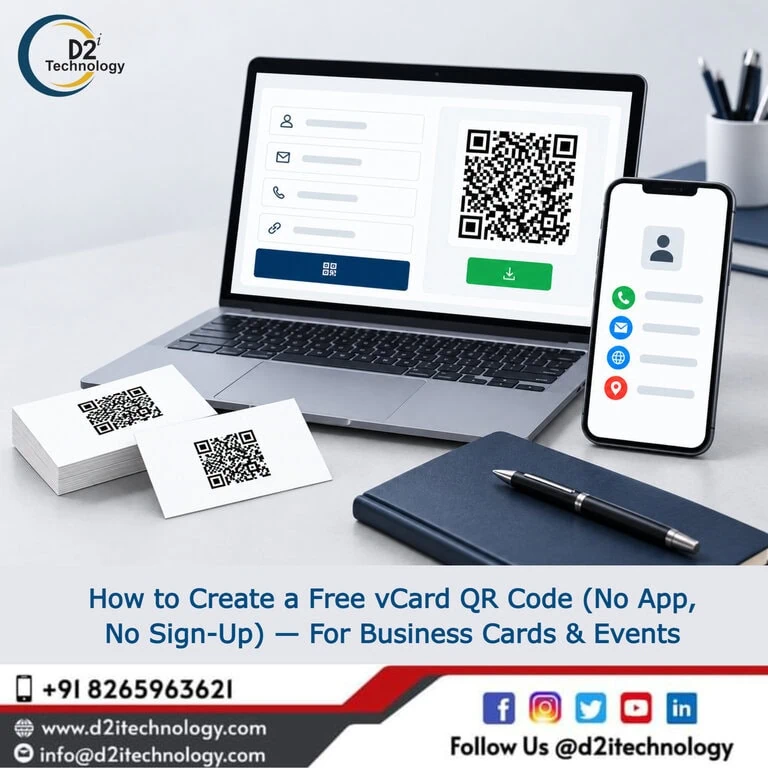
You’ve just had a great conversation at a conference. They want your contact details. You hand over a business card; and immediately wonder whether they’ll actually type out your email address, or whether that card will end up in a pocket and forgotten by Tuesday.
A free vCard QR code solves this problem cleanly. A single scan of a contact card enables you to save all of the contact’s information (name, contact number, email address, and website URL) on the contact’s phone in his contact list.
This post explains what a vCard QR code is, why it works better than a plain URL QR code for contact sharing, exactly how to create one without downloading an app or creating an account, and where it makes the most sense to use one.
What Is a vCard QR Code?
A vCard QR code is a QR code that encodes contact information in the vCard format; a standard that contact apps on both Android and iOS understand natively. When someone scans the code, their phone reads the vCard data and prompts them to save it as a new contact, pre-filled with every field you included.
This is different from a QR code that simply links to a website or a LinkedIn profile. A URL QR code sends the scanner to a page; they still have to find and copy your details themselves. A vCard QR code delivers the contact card directly, ready to save in one tap.
For professional use, that difference matters a lot. It reduces the friction between meeting someone and actually having their information in a usable form.
Why vCard QR Codes Work Better Than Plain URL QR Codes for Networking
It’s worth being specific about why vCard QR codes outperform the alternatives for contact sharing:
They work offline. A vCard QR code doesn’t need the scanner to load a webpage. The contact data is encoded in the QR code itself, so it works even without a data connection; useful at venues with poor signal or at international events.
They save to the contacts app directly. Rather than opening a browser, a well-structured vCard QR code triggers the native contacts prompt on iOS and Android. One tap saves the contact, complete with all the fields you included.
They don’t require the scanner to have an account. LinkedIn QR codes, digital business card apps, and similar solutions require the other person to have the same app or account to get the full benefit. A vCard QR code works with any phone’s built-in camera.
They’re permanent. Since the data is in the QR code itself rather than hosted on a server, a vCard QR code doesn’t expire or break if a service shuts down.
What Information Can a vCard QR Code Hold?
A full vCard can include:
- Full name (first name, last name, middle name, prefix, suffix)
- Job title and organization
- Phone numbers (mobile, office, fax)
- Email addresses (work, personal)
- Website URLs
- Physical address (work or home)
- Social media profiles (LinkedIn, Twitter/X, etc.)
- A short note or bio
- Photo (in some implementations)
For a business card or event badge, you probably don’t need all of these. The most useful fields for professional networking are: full name, mobile number, work email, and website URL.
How to Create a Free vCard QR Code — Step by Step
D2i Technology’s free vCard QR Code Generator creates a downloadable, print-ready QR code from your contact details with no sign-up, no account, and no software to install. Here’s exactly how to use it:
Step 1: Open the Tool
Go to d2itechnology.com/tools/vcard-qr-generator/ in any browser on your phone, tablet, or computer. The tool loads instantly; no login required.
Step 2: Fill In Your Contact Details
Enter the information you want the QR code to contain. At minimum, include your:
- Full name
- Email address
- Contact number
- Website URL
Add your website URL if you want people to be able to find more about you with one click after saving your contact.
Step 3: Generate the QR Code
Click the generate button. The tool creates your QR code immediately; no waiting, no email confirmation, no account creation.
Step 4: Download and Use
Download the QR code image in PNG format. PNG works well for digital use and standard printing.
The QR code is now ready to use however you need it.
Where to Use Your vCard QR Code
Business Cards
The most common use case. Print your vCard QR code on the back of your business card alongside your contact details. People who prefer to scan rather than type now have an instant option. People who want to read the card still can; the QR code is additive, not a replacement.
Conference Badges and Lanyards
Event organizers increasingly include QR codes on attendee badges. If you’re speaking, exhibiting, or networking at a conference, having your own vCard QR code means you can supplement your badge with a personalized contact-saving option; especially useful if you’re running a booth where individual conversations are brief.
Email Signatures
Add your vCard QR code as an image in your email signature. When someone receives a printed version of the email, or views it on mobile, they can scan the code to save your details without manually copying from the signature block.
Event Brochures and Flyers
For speakers, trainers, consultants, or anyone presenting at events — a vCard QR code in a printed handout or on a slide gives attendees a frictionless way to save your details during or after the presentation.
LinkedIn Posts and Digital Presentations
If you’re sharing slide decks, PDF portfolios, or digital content, embedding your vCard QR code gives recipients an immediate way to save your contact information when they’re looking at your work — when your details are most relevant to them.
Stickers and Merchandise
If you attend trade shows or community events and use branded stickers or merchandise, a vCard QR code on a sticker gives you a compact, reusable contact-sharing option.
Tips for Getting the Most From Your vCard QR Code
Test it before printing. Before you send anything to a printer, scan your QR code yourself with both an iPhone and an Android phone (or ask someone nearby to test the other platform). Verify that all fields save correctly and that the contact looks right in the contacts app.
Add a brief label near the QR code. A small “Scan to save contact” label next to the QR code removes any ambiguity about what it does. Many people still aren’t sure what to expect from a QR code, and a two-word prompt increases the scan rate.
Use a high-contrast design. Standard black-on-white works reliably with every QR reader. If you’re integrating the QR code into a branded design with a colored background, use D2i Technology’s Color Contrast Analyzer to verify the QR code pattern has enough contrast against the background to scan correctly.
Don’t make the code too small. For business cards (85mm × 55mm), a QR code of around 20mm × 20mm is the practical minimum for reliable scanning. Larger is better if you have space.
Keep your information current. If your phone number or email changes, you’ll need to generate a new QR code and reprint anything that has the old one. That’s the trade-off with self-contained vCard QR codes versus hosted digital business card services — consider whether the simplicity is worth it for your situation.
Related Tools From D2i Technology
If you found the vCard QR code generator useful, D2i Technology offers several other free tools that cover similar ground:
- QR Code Generator: Generate QR codes for URLs, text, and other content types beyond vCards
- WhatsApp Link Generator: Create a direct WhatsApp chat link pre-filled with a message, useful for business cards and marketing materials
- Social Media Share Link Generator: Build sharing links for Twitter/X, LinkedIn, Facebook, and others for your content
All tools are available at d2itechnology.com/tools/ — no account required.
Frequently Asked Questions
Generate Your Free vCard QR Code Right Now
D2i Technology's free vCard QR Code Generator creates a downloadable, print-ready QR code from your contact details in under a minute — no account, no app, no cost. Click below to try it.