- Website Accessibility
- November 23, 2026
Free WordPress Accessibility Plugin: 9 Powerful Features Your Visitors Will Love
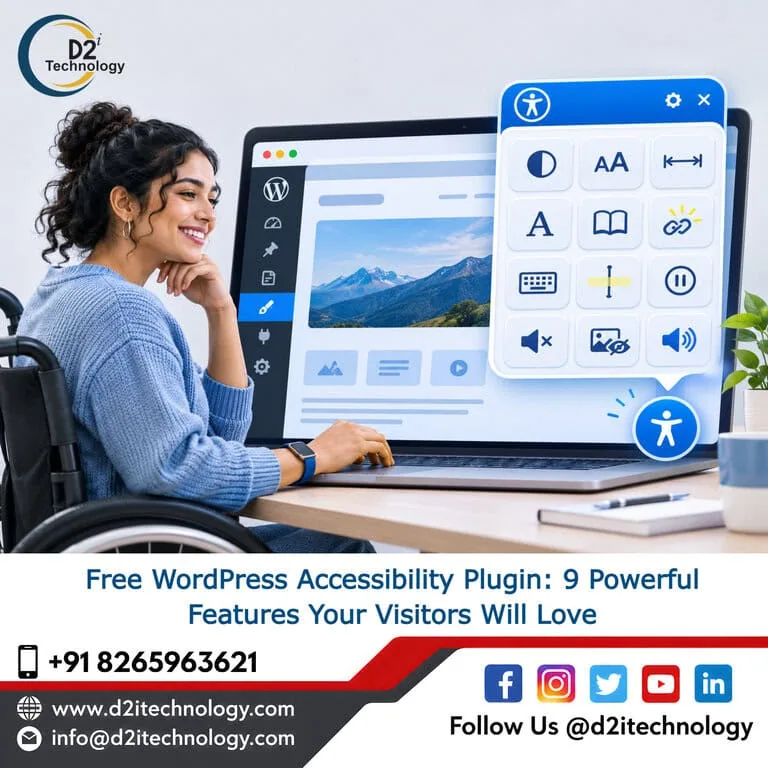
If you run a WordPress site, some of your visitors are probably struggling with it right now, and most of them won’t tell you. A person with low vision squints at light grey text. Someone with dyslexia loses their place halfway through a paragraph. A visitor prone to motion sickness closes the tab because a banner won’t stop sliding. A free WordPress accessibility plugin can’t fix every one of these problems by itself, but the right one gives people a simple way to adjust your site to suit them, right there on the page.
That’s the thinking behind D2i Accessibility Toolkit, the plugin our team at D2i Technology built and published on the WordPress.org plugin directory. The latest release, version 2.0.0, adds a redesigned settings screen, an accessibility statement generator and much finer control over every feature. In this post, we’ll walk through what it does for your visitors, what it gives you as a site owner, and where it fits in a real accessibility plan.
Why Your Site Needs a WordPress Accessibility Plugin
According to the World Health Organization, about 1.3 billion people live with a significant disability. That’s roughly one in six people worldwide. Add older visitors whose eyesight isn’t what it used to be, people reading in a second language, and anyone checking your site on a phone in bright sunlight, and the group that benefits from adjustable text and contrast gets very large.
Browsers and operating systems do have built-in accessibility settings. The trouble is that most people don’t know where to find them, and changing them affects every site and app they use. A free WordPress accessibility plugin puts the controls exactly where the visitor needs them: on your page, one click away. And because it costs nothing to install, there’s very little reason to leave those visitors without help while you work on bigger fixes. (If you’d like broader tips on themes and content, see our guide to improving WordPress accessibility for your visitors.)
What Is D2i Accessibility Toolkit?
D2i Accessibility Toolkit is a free WordPress accessibility plugin that adds a floating accessibility button to the front end of your WordPress site. When a visitor clicks it, an “Accessibility Tools” panel opens with adjustments grouped into four sections: Quick Profiles, color and contrast, text and reading, and navigation and interaction.
Each tile shows its current state, so a visitor can see at a glance that contrast is set to “Dark” or that text size is still “Normal.” Features with several steps show small dots that indicate which step is active. There’s a reset button in the panel header, a Reset All button in the footer, and a link to your site’s accessibility statement.
It works on WordPress 6.0 or higher with PHP 7.4 or higher, and it has been tested with the latest WordPress releases.
9 Features That Make This Free WordPress Accessibility Plugin Worth Installing
1. Quick Profiles for One-Click Setup
Not everyone wants to fiddle with ten separate settings. Quick Profiles bundle sensible adjustments together: Vision Impaired, Seizure Safe, ADHD Friendly, Blindness Mode and Epilepsy Safe. A visitor with ADHD, for example, can turn on one profile and get a calmer, more focused page without having to work out which individual tools help.
2. Contrast and Saturation Modes
Visitors can cycle through Dark, Light and High Contrast modes. Saturation options (High, Low and Monochrome) help people who find strong colors overwhelming or who have trouble telling certain colors apart. Site owners can switch each of these modes on or off individually. These modes help, but they work best on top of a design that already gets contrast right, which we cover in color contrast beyond WCAG.
3. Bigger Text and WCAG Text Spacing
Bigger Text scales content from 100% up to 200% using rem-based sizing, so layouts hold together better than with a simple browser zoom. The Text Spacing option applies the exact values from WCAG success criterion 1.4.12: line height of 1.5, letter spacing of 0.12em, word spacing of 0.16em and paragraph spacing of 2em.
There are also separate Line Height and Text Alignment controls. Justified text is deliberately left out of the alignment options, because the uneven gaps it creates between words make reading harder for many people, which is why WCAG 1.4.8 advises against it.
4. Readable and Dyslexia-Friendly Fonts
The Readable Font option swaps decorative typefaces for a clean, plain one. Dyslexia Friendly switches to OpenDyslexic, an open-source font designed for readers with dyslexia. The font files are bundled inside the plugin, so nothing loads from an outside server. Bold Text, Highlight Titles and Highlight Links round out this group and make it easier to scan a page and spot where to click.
5. Read Page (Text-to-Speech)
Read Page reads your content aloud using the browser’s own speech engine. There’s no third-party voice service, no API key and no extra cost. It’s useful for people with low vision, for people with reading difficulties, and for anyone who simply prefers to listen to a long article.
6. Reading Guide
The Reading Guide dims the page above and below a narrow reading band that follows the cursor. If you’ve ever run a finger or a ruler under a line of text to keep your place, you’ll understand straight away why this helps. It also supports touch, so it works on phones and tablets.
7. Pause Animations and Mute Sounds
Pause Animations stops CSS animations and transitions, freezes animated GIFs and pauses videos. It also respects the visitor’s prefers-reduced-motion setting automatically, so people who have already asked their device for less motion get it on your site too. Mute Sounds silences audio and video, including media that loads later, such as a video inside a popup.
8. Keyboard Navigation and Big Cursor
Many people never touch a mouse, and our keyboard navigation accessibility guide explains why that matters so much. Keyboard Navigation adds high-visibility focus rings, so it’s always clear which link or button is selected. Big Cursor swaps the pointer for a 64px black or white cursor that’s much easier to track. Site owners can also turn on an Alt + A shortcut (Option + A on a Mac) that opens the panel straight from the keyboard. The shortcut is ignored while someone is typing in a form field.
9. Hide Images (with Alt Text Shown)
Hide Images removes images, picture elements and SVGs, and displays their alt text as visible text in their place. Visitors with cognitive disabilities or those on slow connections get a quieter page. There’s a handy side benefit for you, too: turn it on while reviewing your own site and any image with missing or unhelpful alt text becomes obvious.
What You Control as a Site Owner
Everything lives under D2i Accessibility in the WordPress admin sidebar, split into four sections with a sticky save bar.
Match the Widget to Your Brand
The Appearance section gives you eight brand color presets that pass WCAG AA, plus a color picker and hex field with a live contrast check, so you can’t accidentally pick a color that fails. You can choose the button icon (Universal, Person or Eye), the button size (48px, 56px or 64px) and separate corner positions and margins for desktop and mobile. A live preview shows the result before you save.
Choose Which Features Appear
In the Features section, you can switch each tool on or off, hide Quick Profiles entirely, or use the “All on / off” button for a whole group. Once you disable a feature, it disappears from the panel and any saved visitor preference for it is ignored.
Decide Where the Button Shows
The Behaviour section lets you show the widget on desktop, mobile or both, hide it on admin and login pages, and display it on all pages, all but a few, or only specific ones. The “Powered by D2i Technology” credit is off by default.
Generate an Accessibility Statement
Fill in a short form and the plugin generates an accessibility statement page that you can preview or copy as HTML. If your statement or VPAT is hosted elsewhere, you can point the footer link to that URL instead. You can see a working example on our own accessibility statement page.
Built with Privacy and Accessibility in Mind
A lot of accessibility widgets load scripts, fonts and tracking from outside servers. When you’re comparing options for a free WordPress accessibility plugin, that’s worth checking, because “free” sometimes means your visitors’ data pays for it. This one doesn’t work that way. Fonts, cursors and icons are all bundled locally. There’s no analytics and no cookies, and nothing is written to your database. Visitor preferences are stored only in the browser’s LocalStorage, which makes conversations with your privacy or compliance team much shorter, whether you’re working under GDPR or India’s DPDP Act.
The widget itself also follows the standards it supports. It uses semantic buttons, traps focus while the panel is open, closes with the Escape key and uses proper ARIA roles and states. Its own text meets a 4.5:1 contrast ratio, its touch targets are at least 44 by 44 pixels, and it has been tested with NVDA, JAWS, VoiceOver and TalkBack. That might sound obvious, but a widget only helps if the people who need it can actually operate it.
How to Install the Free WordPress Accessibility Plugin
- In your WordPress dashboard, go to Plugins > Add New.
- Search for “D2i Accessibility Toolkit.”
- Click Install Now, then Activate.
- Open D2i Accessibility in the admin sidebar and set your colors, placement and features.
- Generate your accessibility statement and save.
You can also download the ZIP from the plugin page and upload it under Plugins > Add New > Upload Plugin. For screenshots and a feature overview, visit the D2i Accessibility Toolkit page on our site.
A Free WordPress Accessibility Plugin Is a Start, Not the Finish Line
We’ll be straight with you, because the plugin’s own documentation is: installing a free WordPress accessibility plugin, ours included, does not make your site compliant with WCAG, the ADA, Section 508 or EN 301 549. A widget changes how a page is presented. It can’t rewrite the code and content underneath.
Here’s a common example. Say your contact form has four fields with no proper labels. A sighted visitor sees “Name,” “Email,” “Phone” and “Message” as placeholder text. A screen reader user may hear “edit text” four times in a row with no idea what goes where. No toggle in any widget can fix that. The form needs to be fixed in your theme or form builder.
The same goes for meaningful alt text, a logical heading structure, captions on videos, accessible PDFs and color contrast in your design. Our list of 10 common accessibility mistakes shows the issues we find most often. If you’re serious about WCAG compliance or ADA compliance, a sensible next step looks like this:
- Run a quick scan with our free D2i AccessScan tool to spot obvious issues.
- Check your brand colors with the Color Contrast Analyzer.
- Book a WCAG audit that combines automated checks with manual testing by people who use assistive technology. (Here’s why manual audits catch what automated tools miss.)
- Fix what the audit finds through accessibility remediation, then retest.
That’s the work our accessibility services team does every day for organizations in the US, Europe and India. Working with a tight budget? Our post on making your website accessible on a budget shows where to start.
Final Thoughts
A free WordPress accessibility plugin won’t replace accessible design, but it does give your visitors real control over how they read, see and hear your site. D2i Accessibility Toolkit does that without tracking anyone, loading files from outside servers or making promises it can’t keep. Install it, set it up in a few minutes, and when you’re ready to go further, our team is happy to help you close the gaps a widget can’t reach.
Frequently Asked Questions
Ready to Go Beyond the Widget?
Our accessibility experts will audit your WordPress site against WCAG 2.2 and fix the issues a plugin can't reach, from forms and menus to PDFs and video.