- Web Accessibility
- October 21, 2026
How Accessible Are Popular Online PDF Editors? A 2026 Review
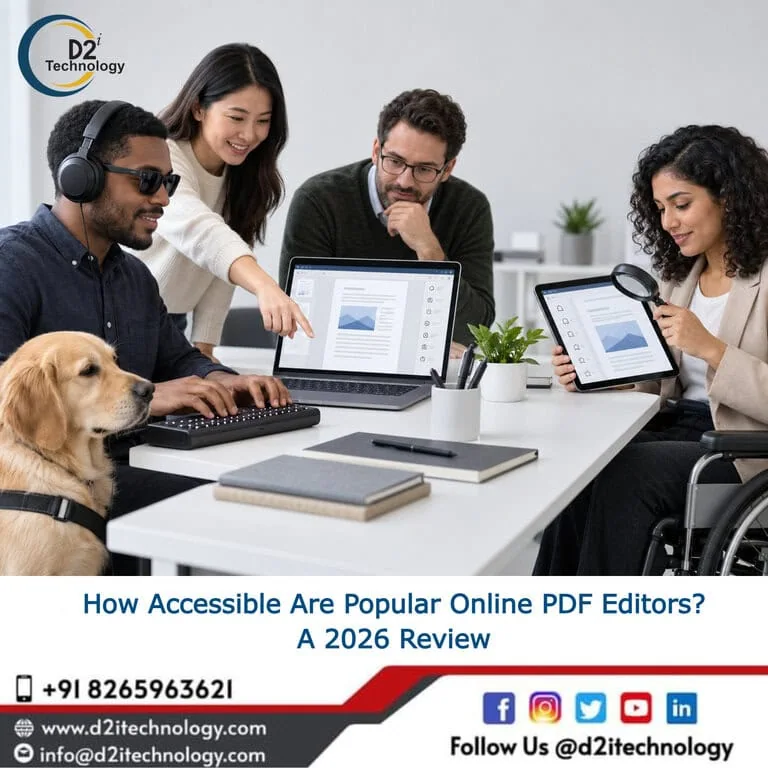
PDF editors are everywhere. Whether you’re filling in a form, signing a document, merging files, or annotating a contract, there’s an online tool promising to do it in seconds. But how many of those tools are actually usable by people who rely on a screen reader, navigate by keyboard, or need adequate color contrast to work comfortably? Accessible PDF editors are harder to find than the market might suggest and the gap between what these tools promise and what they actually deliver for users with disabilities is worth examining honestly.
This review looks at five of the most widely used online PDF editors in 2026, evaluates their accessibility against core criteria, and flags what organizations should consider when choosing tools that need to work for everyone on their team.
What “Accessible” Actually Means for a PDF Editor
Before getting into individual tools, it’s worth being specific about what accessibility means in this context. A truly accessible PDF editor should:
- Be fully keyboard navigable — every function reachable and operable without a mouse
- Work correctly with screen readers such as JAWS, NVDA, and VoiceOver
- Provide sufficient color contrast for text, buttons, and UI controls – meeting WCAG 2.1 Level AA at minimum
- Offer clear focus indicators so keyboard users always know where they are on the page
- Present meaningful labels on all interactive elements, not just visual placeholders
- Support accessible document output — PDFs produced by the tool should themselves be tagged and structured for assistive technology
This last point matters more than most people realize. An editor can have a reasonably accessible interface but still produce PDFs that are completely inaccessible to screen reader users. For WCAG PDF accessibility purposes, both the tool and the output document need to meet standards.
Adobe Acrobat Online
Interface Accessibility: Good
Output Accessibility: Strong
Screen Reader Support: Yes (with caveats)
Adobe Acrobat remains the most mature tool in the space, and that maturity shows in its accessibility approach. The desktop version of Acrobat has long supported accessibility features including tagged PDF creation, reading order correction, and accessibility checking – Acrobat’s built-in accessibility checker aligns reasonably well with PDF/UA and WCAG criteria.
The online version (acrobat.adobe.com) has improved considerably. Most functions are keyboard accessible, focus indicators are visible, and common actions like uploading, editing, and downloading are navigable without a mouse. Screen reader users will find the core workflow manageable, though complex editing functions – particularly those involving inline annotation or form field creation — can still be finicky.
Where Adobe genuinely stands out is in output quality. It’s the only widely used online tool that gives users meaningful control over document tagging, reading order, and alt text – critical for producing PDFs that screen reader users can actually navigate. For organizations with Section 508 obligations or ADA compliance requirements for their documents, Acrobat’s output capabilities remain significantly ahead of the alternatives.
Limitations: The free online tier restricts most advanced accessibility features. Producing genuinely tagged, structured PDFs requires a paid subscription, which puts it out of reach for casual users or smaller organizations working on a budget.
Smallpdf
Interface Accessibility: Moderate
Output Accessibility: Limited
Screen Reader Support: Partial
Smallpdf is one of the most popular browser-based PDF tools, with a clean interface that performs well for basic tasks. From an accessibility standpoint, it’s a mixed picture. The main navigation and primary upload interactions are keyboard accessible, and the tool uses reasonably clear button labels in most areas.
The problems show up in the editing interface itself. Once a document is open for annotation or form editing, focus management breaks down — screen reader users may lose track of where they are on the page, and some interactive controls lack proper accessible names. Color contrast on certain UI elements, particularly in lighter themes, doesn’t consistently meet WCAG 2.1 Level AA thresholds.
On output accessibility, Smallpdf doesn’t offer meaningful control over document structure. PDFs it produces from conversions or edited documents are rarely tagged for assistive technology use — which matters significantly if the documents you’re creating need to be readable by someone using a screen reader.
For teams whose primary use case is merging files or converting document formats rather than producing content that will be shared with diverse audiences, Smallpdf’s interface limitations may be acceptable. For any workflow where document accessibility matters, the output quality is a real constraint.
PDF24
Interface Accessibility: Moderate
Output Accessibility: Limited
Screen Reader Support: Limited
PDF24 offers an impressive range of features for a free tool, covering compression, conversion, splitting, merging, and basic editing. Accessibility, however, isn’t clearly prioritized in the interface design. Keyboard navigation is inconsistent – some tools within the suite work entirely by keyboard while others are essentially mouse-dependent.
Focus indicators are present in some areas and absent or barely visible in others. Screen reader users will find certain workflows manageable but others genuinely difficult. The tool doesn’t provide meaningful accessibility conformance information, and independent testing has found multiple WCAG failures in the interactive editing interface.
PDF24 does produce downloadable PDFs, but document tagging and structural accessibility in the output are not features the tool actively supports. For organizations evaluating tools against accessibility compliance audit criteria, PDF24 would not meet the threshold for use in contexts where document accessibility is required.
ILovePDF
Interface Accessibility: Moderate
Output Accessibility: Limited
Screen Reader Support: Partial
ILovePDF’s interface is straightforward and its tool set covers the most common PDF needs. The homepage and tool selection are keyboard navigable, and for simple operations – uploading a file, selecting a conversion type, downloading the result – the basic workflow functions reasonably well for keyboard users.
Where ILovePDF struggles is in more complex editing interactions. Annotation tools, text insertion, and form management have accessibility gaps including missing focus indicators, unlabeled controls, and interactions that require mouse input. The color contrast in parts of the interface, particularly in status messages and secondary navigation elements, falls below WCAG minimum thresholds.
The tool does not provide users with control over document tagging or reading order – a significant limitation for organizations producing documents that need to be WCAG PDF compliant for distribution to end users.
Nitro PDF
Interface Accessibility: Good
Output Accessibility: Good
Screen Reader Support: Yes
Nitro, primarily known as a desktop product, has developed web-based capabilities that show genuine attention to accessibility. Keyboard navigation is more consistently implemented than most alternatives in this review, focus management is better than average, and interactive elements are more reliably labeled. Screen reader users report a more functional experience with Nitro than with most browser-based alternatives.
On output, Nitro supports PDF tagging and gives users more control over document structure than Smallpdf, PDF24, or ILovePDF. It’s not Adobe Acrobat’s equal in terms of accessibility output features, but it’s a meaningful step above the pure online-only alternatives.
Nitro’s limitation is primarily cost – it’s a business-focused product with pricing that reflects that positioning. For teams with a professional PDF workflow and accessibility requirements, that investment may be well justified.
What Organizations Should Look For in 2026
The common thread across this review is a significant gap between interface accessibility and output accessibility. A tool can have a reasonably navigable interface and still produce documents that are completely unusable for screen reader users. When evaluating PDF editors for organizational use, both dimensions need to be assessed:
Interface questions:
- Can every function be accessed and operated with a keyboard alone?
- Does the tool work with NVDA, JAWS, and VoiceOver without significant breakdowns?
- Do interactive controls have meaningful labels – not just visual placeholders?
- Are focus indicators clearly visible throughout?
- Does color contrast meet WCAG 2.1 AA minimums?
Output questions:
- Does the tool produce tagged PDFs?
- Can you control reading order and document structure?
- Can you add meaningful alt text to images within the editor?
- Is the resulting PDF navigable by screen reader without extensive post-processing?
For organizations subject to ADA Title II requirements, the European Accessibility Act, or Section 508 obligations, the output question is often where the most critical compliance gaps appear.
The Broader Picture: Accessible Document Workflows
Choosing an accessible PDF editor is one piece of a larger document accessibility challenge. Even with the best available tool, PDFs produced from inaccessible source documents – Word files without proper heading structure, images without alt text, tables without headers – will require significant remediation before they meet accessibility standards.
D2i Technology’s accessibility testing services cover document accessibility evaluation alongside web and application testing – helping organizations understand what their documents look like to screen reader users and what remediation is needed. The D2i AccessScan tool supports automated accessibility checking as part of a broader quality assurance workflow.
For organizations dealing with large volumes of existing PDFs that need remediation – particularly regulated-sector organizations with publication libraries – a systematic approach to accessibility remediation is often more practical than tool-by-tool evaluation.
Frequently Asked Questions
Need Help Evaluating or Fixing the Accessibility of Your Documents?
D2i Technology helps organizations assess PDF and document accessibility, identify remediation priorities, and build workflows that produce accessible documents from the start. Whether you're managing a library of existing PDFs or designing a new document production process, our accessibility team can help.