- Accessibility Services
- April 1, 2026
Remediating “Drag-and-Drop”: Implementing Keyboard-Accessible Alternatives
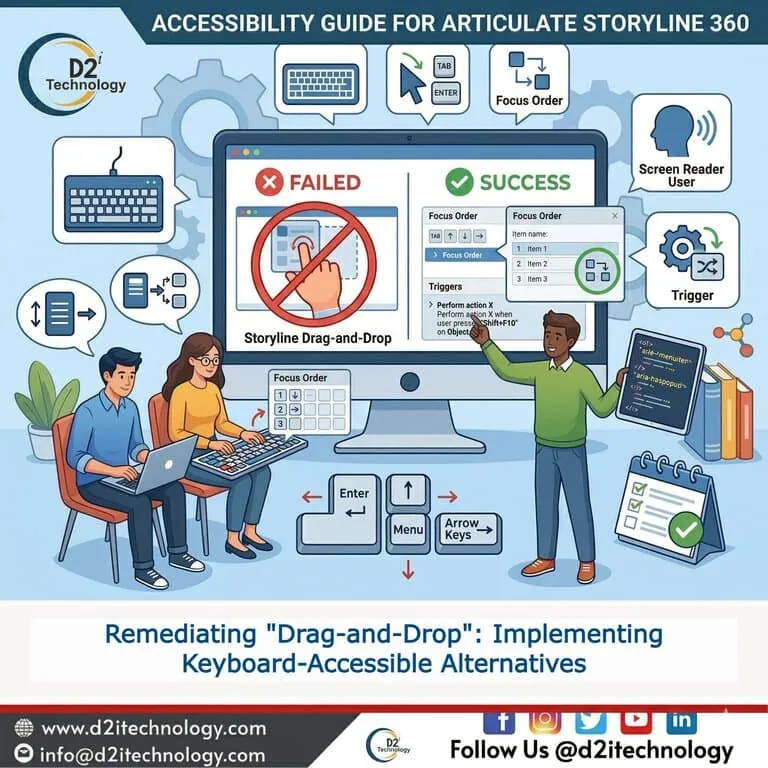
In the world of interactive e-learning, the “drag-and-drop” interaction has long been a designer favorite for creating dynamic, hands-on learning moments. However, for users who rely on assistive technology, these interactions are often impassable roadblocks. To foster a truly inclusive digital environment, developers must prioritize keyboard-accessible alternatives for drag-and-drop to ensure every learner can participate fully. In Articulate Storyline 360 accessibility workflows, this involves moving beyond mouse-dependent movements and leveraging native freeform tools or custom logic to provide a functional equivalent. At D2i Technology, we believe that interactivity should never come at the cost of inclusion, which is why our accessibility remediation services in India focus on creating inclusive and compliant digital learning experiences.
The Problem: Why Traditional Drag-and-Drop Fails
Standard drag-and-drop interactions require a level of fine motor control and visual tracking that many users do not possess. For a person using a screen reader or a keyboard-only user, the act of “picking up” a virtual object, moving it across a screen, and “dropping” it onto a target is fundamentally inaccessible.
Under the Web Content Accessibility Guidelines (WCAG), specifically Success Criterion 2.1.1 (Keyboard), all functionality must be operable through a keyboard interface. Native dragging movements, which require a path-based pointer gesture, are often highlighted as common accessibility issues. Without a keyboard-friendly path, your e-learning module becomes an exclusionary experience.
Native Solutions: Converting to “Pick One” and “Pick Many”
When you look at the “Convert Slide to Freeform Question” menu in Storyline 360, you will see several options. While “Drag and Drop” is the most visual, “Pick One” and “Pick Many” are the most accessible native alternatives.
- The “Pick One” Alternative: This is ideal for interactions where a user must match an item to a single correct destination. By converting a drag-and-drop to a Pick One slide, you transform the interaction into a multiple-choice format. Users can use the “Tab” key to move between options and “Enter” or “Space” to make a selection.
- The “Pick Many” Alternative: For sorting exercises where multiple items belong in a single category, the “Pick Many” option acts like a series of checkboxes. It allows for a more complex interaction that remains natively keyboard-accessible.
Converting to these formats is often the first step in website accessibility remediation services. It keeps the interactive “feel” while ensuring the technical infrastructure supports assistive devices.
The Advanced Approach: Custom “Select-and-Place” Logic
Sometimes, a simple radio button or checkbox isn’t enough to capture the spirit of the interaction. In these cases, we implement a custom “Select-and-Place” logic. Since this is not a native “one-click” conversion in Storyline, it requires a specialized Articulate Storyline eLearning accessibility services approach.
- Selection Phase: The learner tabs to an object and presses “Enter.” This sets a variable (e.g.,
ObjectSelected = True) and changes the object’s state to “Selected” for visual feedback. - Placement Phase: The learner then tabs to the desired target and presses “Enter.” A trigger then moves the object to that location or updates a “Correct/Incorrect” variable.
This “click-to-click” method mimics the outcome of a drag-and-drop without the inaccessible physical movement. It is a cornerstone of effective accessibility remediation for high-end corporate training.
Implementation Best Practices
Successfully implementing keyboard-accessible alternatives for drag-and-drop requires more than just changing the interaction type; it requires attention to the underlying metadata.
- Focus Order Mastery: In the Storyline “Focus Order” panel, ensure that the instructional text is read first, followed by the objects, and then the targets. This prevents confusion for screen reader users.
- Descriptive Alt-Text: Use descriptive instructions in the alt-text. For example: “Sales Data Icon. Press Enter to select this item for sorting.”
- Acknowledge Actions: When an item is “placed” via keyboard, use a hidden text box (an “accessibility name”) that updates to announce the action: “Sales Data has been placed in the 2026 Archive.”
The Business Impact of Inclusive Design
Investing in accessibility testing and remediation is not just a moral choice; it is a strategic business decision. Whether you are aligning with SEBI compliance in India or the ADA Title II rule in the USA, accessible e-learning protects your organization from legal risk and ensures your entire workforce can grow and learn together.
At D2i Technology, we specialize in performing deep accessibility audits to identify these interaction barriers and provide technical solutions that work. Our IAAP-certified auditors understand the nuances of Storyline 360 and the WCAG framework.
Conclusion
Remediating “Drag-and-Drop” is about providing choice. By implementing keyboard-accessible alternatives for drag-and-drop—whether through native “Pick One/Many” conversions or custom “Select-and-Place” logic—you create a resilient, inclusive learning experience. The goal of Articulate Storyline 360 accessibility is to ensure that no learner is ever “locked out” of an interaction because of the device they use or the way they navigate.
Digital equity starts with thoughtful design. Let’s build a future where every click, tab, and selection is an open door for everyone.
Frequently Asked Questions
Is your e-learning content truly inclusive?
Our team of accessibility specialists can help you remediate complex interactions and ensure 100% WCAG compliance for your Storyline projects.