- Digital Accessibility
- November 15, 2025
How to Make the eKYC Process Accessible for Visually Impaired Users
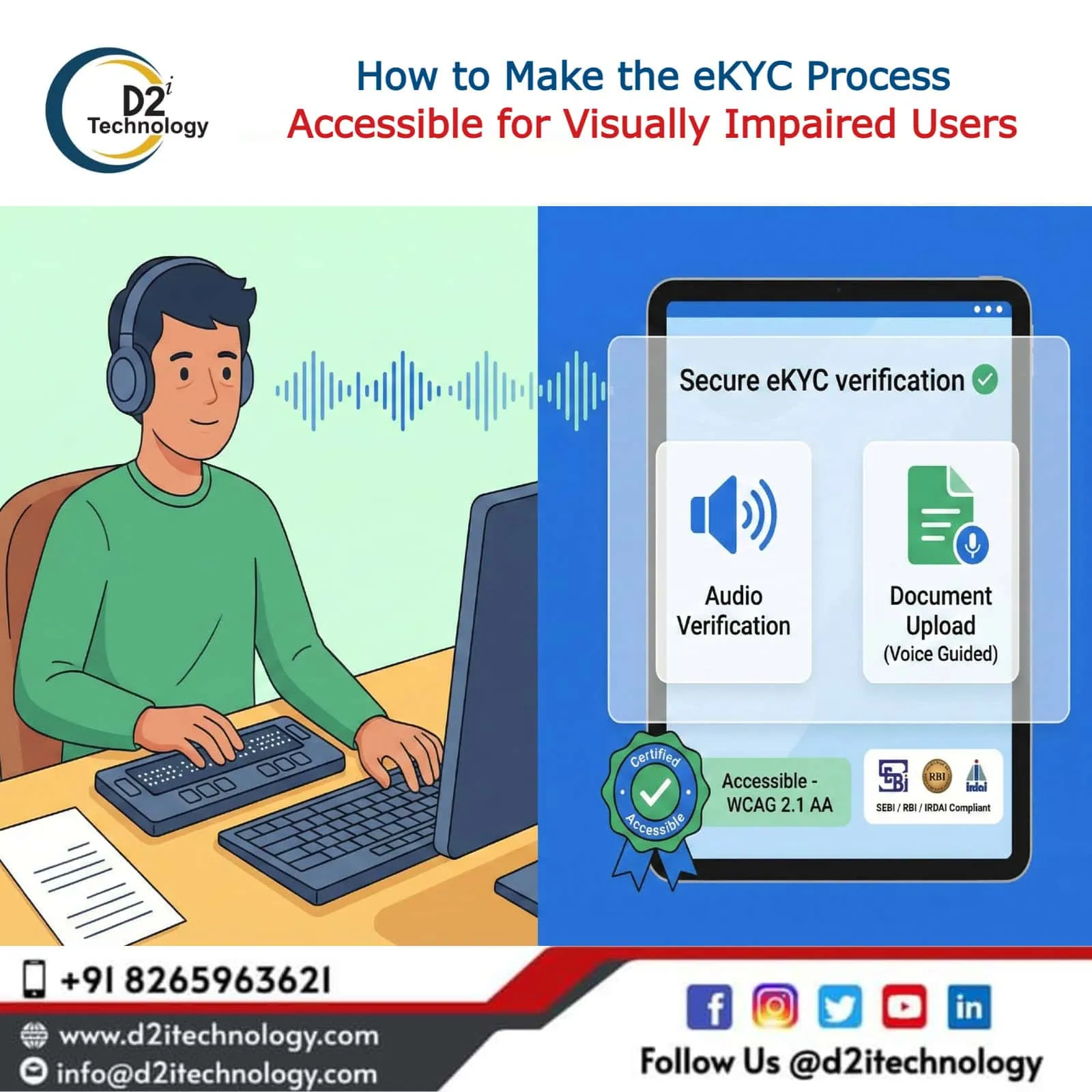
Visually impaired users rely on screen readers, keyboard navigation, voice assistance, and non-visual input methods. An accessible eKYC flow must work seamlessly with these tools while ensuring the verification process remains secure and compliant with WCAG 2.1 Level AA (Mandatory), WCAG 2.2 (Best Practice), the RPWD Act 2016, and regulatory requirements from SEBI, RBI, and IRDAI.
1. Make the Entire UI Screen-Reader Friendly
Use semantic HTML with proper roles:
- All form fields must be labeled using the
<label for="">element. - Provide ARIA labels for buttons like ‘Upload Photo’ and ‘Capture Image’.
- Announce errors using
aria-live="assertive". - Ensure screen reader users can navigate step-by-step.
Example:
<button aria-label="Start Aadhaar eKYC verification">Verify with Aadhaar</button>2. Avoid Mandatory Visual CAPTCHA
Visually impaired users often cannot solve standard image CAPTCHAs, and mathematical puzzles can exclude users with cognitive disabilities. Use accessible alternatives that prioritize zero user interaction:
- reCAPTCHA v3 (Recommended: Fully invisible, risk-based scoring).
- reCAPTCHA v2 “Invisible” (Runs in background, only challenges suspicious traffic).
- Honeypot Method (Hidden form fields that bots fill but humans don’t see).
- Audio CAPTCHA (Use as a last resort; ensure clear speech output).
3. Alternative to Selfie and Liveness Detection
This is the biggest blocker for visually impaired users. Provide alternate verification options:
- Option A: Assisted Mode Allow users to request human verification via video call or assisted KYC with trained support staff.
- Option B: Voice-based Liveness Check The system asks the user to speak a random number, a phrase, or a simple confirmation like “Say YES to confirm”. This approach is fully screen-reader compatible.
- Option C: Use Existing Government ID Photo Allow backend matching with stored Aadhaar or government images instead of requiring a new selfie capture
4. Make Document Upload Accessible
Visually impaired users cannot see where to click or crop. Ensure accessibility with these steps:
- Upload button must be fully keyboard-accessible.
- Support document upload from file manager (not only camera).
- Provide automatic cropping or backend cropping functionality.
- Provide audio feedback through screen readers.
- Announce file upload status clearly.
Example:
<input type="file" aria-label="Upload your ID document" />5. Clear Audio Feedback and Guided Instructions
Provide short, clear, screen-reader-announced directions:
- “You must upload your ID card.”
- “Your document has been uploaded successfully.”
- “Please speak the number 764 for verification.”
Use aria-live="polite" for general status messages and aria-live="assertive" for critical errors.
6. Ensure Full Keyboard Navigation
Users should be able to complete the entire eKYC process without a mouse:
- Tab focus must be clearly visible with high contrast outline (WCAG 2.4.7 Focus Visible).
- Maintain logical tab order throughout the flow.
- Avoid keyboard traps in any interactive element.
- Dialogs and modals must be fully keyboard operable with Escape to close.
7. Accessible Status, Errors, and Progress Indicators
Errors must announce themselves automatically to assistive technologies.
Example:
<div role="alert" aria-live="assertive">Your Aadhaar number is invalid</div>8. Give Users the Option to Save and Resume Later
Visually impaired users often take longer due to assistive technology interaction. Provide:
- Save progress functionality at each step.
- Resume later option with session persistence.
- Support link inside every step (chat, call, or email).
- Extended time limits with option to request more time.
9. Make PDFs and Generated Documents Accessible
If your KYC process produces a PDF:
- Tag PDFs properly with correct reading structure.
- Add alt text to all images and graphics.
- Ensure correct reading order for screen readers.
- Use accessible fonts with adequate size.
10. Comply with WCAG 2.1 AA (Mandatory) & WCAG 2.2
Organizations regulated by SEBI, RBI, and IRDAI must comply with WCAG 2.1 Level AA (as per GIGW 3.0 and IS 17802). Adopting WCAG 2.2 is recommended for future-proofing. Key WCAG success criteria include:
- 1.3.1 Info and Relationships – Proper semantic structure.
- 2.1.1 Keyboard – All functionality keyboard accessible.
- 1.4.3 Contrast – Minimum 4.5:1 contrast ratio.
- 2.4.3 Focus Order – Logical focus sequence.
- 3.3.1 Error Identification – Clear error descriptions.
- 1.2.1 Audio-only and Video-only (Prerecorded) – Audio alternatives.
- 1.4.5 Images of Text – Avoid text in images.
Additionally, comply with the Rights of Persons with Disabilities (RPWD) Act, 2016 which mandates accessibility in public services.
What the Most Accessible eKYC Flow Looks Like
A visually impaired-friendly eKYC implementation includes:
- Accessible form fields with proper labels and instructions.
- No mandatory face or selfie verification requirement.
- Option for voice-based verification.
- Option for assisted KYC with trained staff.
- Screen-reader optimized instructions and feedback.
- Fully keyboard accessible interface.
- Backend matching instead of forcing visual steps.
- Extended time limits with save and resume functionality.
This approach makes your eKYC usable for:
- Visually impaired users (blind and low-vision).
- Users with motor disabilities.
- Elderly users with accessibility needs.
- Users relying on assistive technologies