
- eLearning Accessibility
- March 24, 2026
Mastering the “Set-Focus” Trigger: Solving the “Where Did the Screen Reader Go?” Problem
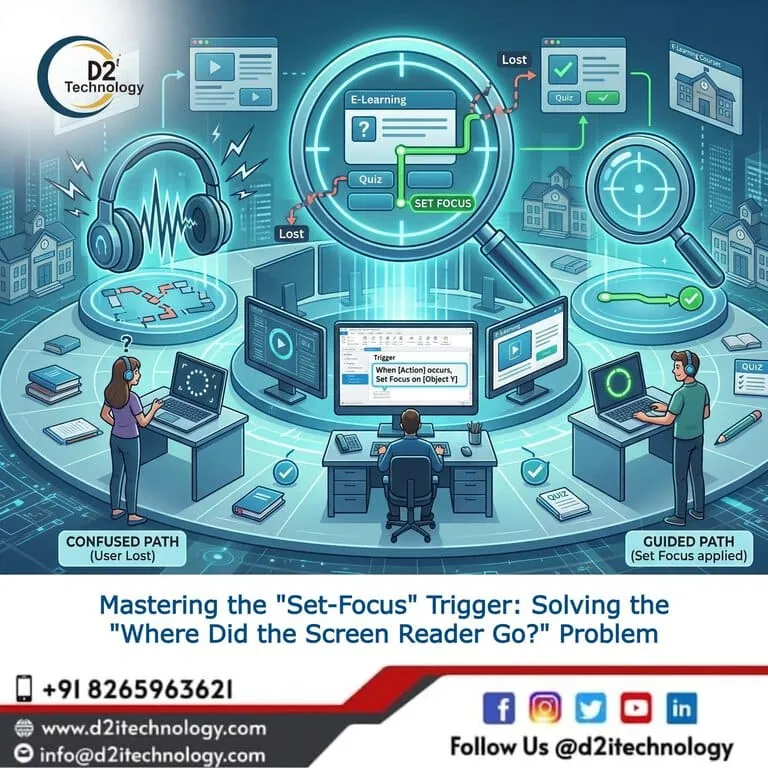
When developing inclusive eLearning modules, understanding the “Set-Focus” Trigger Storyline 360 is non-negotiable for developers who want to create a seamless experience for all learners. One of the most common frustrations for developers and users alike occurs when a screen reader user interacts with a button to open a layer, only for the “focus” to stay stuck on the base layer or disappear entirely into a digital void. This phenomenon, often called the “Where did the screen reader go?” problem, can be the difference between a successful course and a frustrating barrier for learners using assistive technology.
At D2i Technology, we specialize in articulate storyline elearning accessibility services, and we have seen how a simple oversight in focus management can break an otherwise perfect module. By mastering focus triggers, you ensure that your content isn’t just visible, but truly navigable.
Understanding the Concept of “Focus”
In the world of accessibility, “focus” refers to the current active element on the screen that is receiving input from the keyboard or being announced by a screen reader (like NVDA or JAWS). For a sighted user, focus is often indicated by a blue or yellow “focus indicator” box. For a screen reader user, focus tells them where they are in the lesson.
When focus is lost—perhaps because a new layer opened but the screen reader is still reading the button that launched it—the user loses their place. This is one of the most common accessibility issues in modern eLearning development.
The Problem: Why Does Focus Get Lost?
In Articulate Storyline 360, layers are a powerful way to show additional information. However, by default, Storyline doesn’t always know where you want the screen reader to go when a layer appears. If you have a “Click to Reveal” interaction:
- The user clicks a button on the base layer.
- A layer opens with new text and a “Close” button.
- The screen reader remains on the original button (which is now hidden or inactive under the layer).
- The user is confused because the audio doesn’t match the new visual information.
This is where Screen Reader Accessibility Storyline techniques become vital. Without directing the focus, you are essentially asking a blind user to find a needle in a haystack every time they click a button.
The Solution: The “Set-Focus” Trigger
The “Set-Focus” trigger was a game-changer introduced to help developers programmatically move the screen reader’s attention. Instead of leaving it to chance, you can explicitly tell Storyline: “When this layer starts, move the focus to the heading on this layer.”
How to Implement the Set-Focus Trigger
Follow these steps to ensure your learners never lose their way:
- Identify the Target: Decide which element should be read first on the new layer. Usually, this is a title/heading or the first paragraph of text.
- Create the Trigger: In the Triggers panel, click “Create a New Trigger.”
- Action: Select Set Focus.
- Object: Choose the specific text box, image, or button you want to highlight.
- When: Select When the timeline starts.
- Object (Timeline): Select the current layer.
By implementing this, you align your project with web accessibility guide for developers best practices, ensuring a logical flow of information.
Beyond the Basics: Strategic Focus Placement
It is not enough to just set focus anywhere; you must set it strategically. For instance, if you are using a modal or a lightbox, the focus should ideally land on the “Close” button or the main heading of that modal.
If you are looking for website accessibility remediation services guide, you’ll find that “Focus Management” is a top priority. The same applies to eLearning. If your learner finishes a quiz and a “Results” layer pops up, the focus should immediately jump to the “Result Score” so the user doesn’t have to tab through the entire slide again to find their grade.
Enhancing Navigation with Tab Order
While the “Set-Focus” trigger solves the entry point problem, the Focus Order (formerly Tab Order) tool handles the journey. You should always ensure that after the focus is set, the subsequent “Tab” key presses follow a natural reading order (Top to Bottom, Left to Right).
At D2i Technology, our accessibility services involve a rigorous check of these pathways. We don’t just look for compliance; we look for usability. A course that is technically compliant but difficult to navigate is still a failed course in our eyes.
Why Proactive Focus Management Matters
Waiting until the end of a project to fix focus issues is a recipe for disaster. It leads to “spaghetti triggers” where you are trying to patch holes in a sinking ship. Proactive accessibility means:
- Consistent Experience: Every interaction feels predictable.
- WCAG Compliance: Meeting Level AA standards for keyboard navigation and meaningful sequence.
- Reduced Cognitive Load: Users can focus on learning the material rather than learning how to use the interface.
As highlighted in our previous accessibility testing proposals in 2021, the industry is moving toward “Accessibility by Design.” Using the “Set-Focus” Trigger Storyline 360 is a cornerstone of that philosophy.
Conclusion
Solving the “Where Did the Screen Reader Go?” problem isn’t just a technical task—it’s an act of empathy. It shows that you value the time and effort of every learner, regardless of how they access your content. By mastering the Set-Focus trigger and refining your focus order, you transform a disjointed experience into a professional, inclusive, and highly effective eLearning module.
Frequently Asked Questions
Is Your eLearning Truly Accessible for Everyone?
Don't let confusing navigation hold your learners back. Our team of certified accessibility experts can audit your Storyline projects and ensure they meet the highest global standards.