- eLearning Accessibility
- March 1, 2026
The Ultimate eLearning Accessibility Audit Checklist for Storyline 360
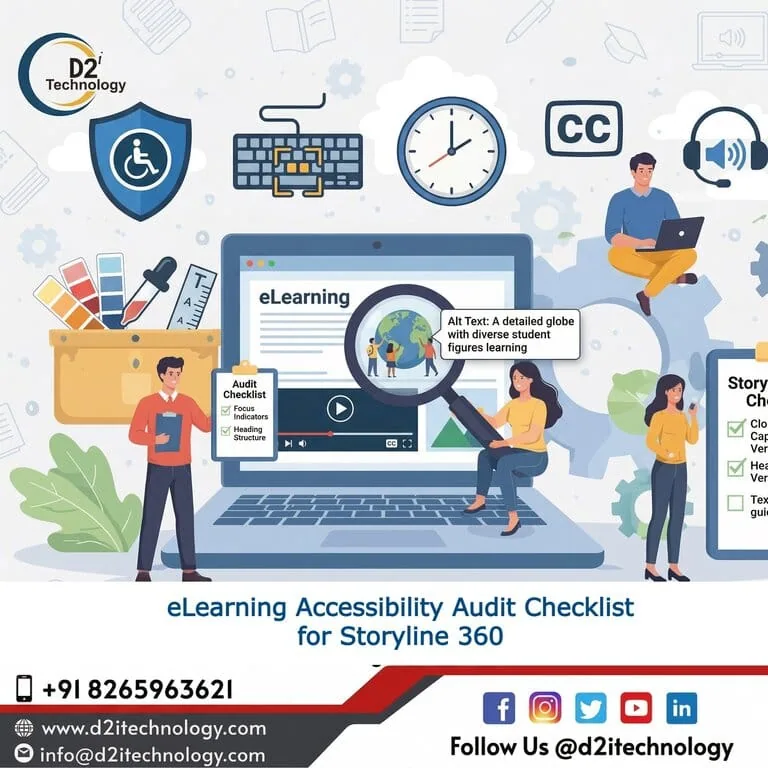
Creating inclusive digital experiences is no longer a “nice-to-have” feature; it is a fundamental requirement for modern instructional design. If you are developing courses today, using a robust eLearning Accessibility Audit Checklist for Storyline 360 is the only way to ensure your content reaches every learner, regardless of their physical or cognitive abilities. As an accessibility developer, I’ve seen firsthand how a single missed “Alt Text” or a trapped keyboard focus can alienate a student. This guide is designed to help you move beyond basic compliance and embrace true accessibility remediation within the Articulate ecosystem.
Why Accessibility in Articulate Storyline 360 Matters
Articulate Storyline 360 has made massive strides in the last year. From AI-generated closed captions to improved semantic formatting, the tool is more powerful than ever. However, the tool is only as accessible as the person using it. A checklist ensures that you don’t just rely on the software’s defaults but actively curate an environment that meets WCAG 2.2 Level AA standards.
Phase 1: Visual and Textual Foundation
The first step in any audit starts with what the learner sees—and what the screen reader announces.
- Semantic Heading Structure: Are you using the “Text Styles” feature to define H1, H2, and H3? Screen reader users rely on these to skim the page.
- Color Contrast: Ensure your text-to-background ratio is at least 4.5:1 for regular text and 3:1 for large text. Use tools like the Adobe Color Accessibility filter to verify.
- Avoid Sensory-Only Instructions: Never say “Click the red button” or “Look at the box on the right.” Instead, use “Click the ‘Submit’ button” or “Refer to the ‘Resources’ section.”
- Accessible Fonts: Stick to sans-serif fonts like Arial or Open Sans at a minimum size of 12pt.
Phase 2: Navigation and Keyboard Accessibility
For many learners, the mouse is an irrelevant tool. They navigate via Tab, Enter, and Arrow keys.
- The Custom Focus Order: This is the heart of your eLearning Accessibility Audit Checklist for Storyline 360. Open the Focus Order window and ensure objects are read from top-to-bottom, left-to-right. Remove decorative items from the focus order entirely.
- No Keyboard Traps: Ensure that when a learner opens a layer or a lightbox, the focus stays within that layer and doesn’t “leak” to the base layer underneath.
- Skip Navigation: Use the modern player’s built-in “Skip Navigation” feature so users can jump straight to the slide content without tabbing through every player element.
- Focus Indicator Visibility: Is the yellow/blue box around the selected item clearly visible? If not, adjust the player properties to increase the thickness.
Phase 3: Multimedia and Interactive Elements
Storyline is famous for its triggers and layers, but these are often the biggest accessibility hurdles.
- Closed Captions (CC): Every audio and video file must have captions. Use the built-in AI Captioning tool in Storyline 360 to generate them quickly, but always proofread for technical jargon.
- Audio Transcripts: Provide a downloadable text version of the audio for those who prefer reading or use refreshable braille displays.
- Alt Text for Meaningful Images: If an image conveys information (like a chart), describe it. If it’s just a background swoosh, mark it as “Decorative” or “Object is invisible to screen readers.”
- Pause/Stop Controls: If you have an animation or video that lasts longer than 5 seconds, the user must have a way to pause it (WCAG 2.2 Criterion 2.2.2).
Phase 4: Testing Your Course
An audit is incomplete without a trial run. Put away your mouse and turn on your screen reader.
- NVDA/JAWS Testing: Listen to your slides. Does the screen reader announce “Button” for buttons and “Heading” for titles?
- Tab Key Journey: Tab through a whole module. Does the sequence make logical sense?
- High Contrast Mode: Turn on Windows High Contrast mode and check if any icons or text disappear.
By following this eLearning Accessibility Audit Checklist for Storyline 360, you ensure that your eLearning design is equitable. At D2i technology, we believe that learning should be a barrier-free right, not a privilege for those with specific abilities.
Frequently Asked Questions
Ready to Make Your Learning Inclusive?
Don't let accessibility be an afterthought. Our team of certified specialists can help you audit, remediate, and perfect your Storyline 360 courses to ensure 100% compliance.